Hybrid events without any surprises: Mac/PC compatibility, video conferencing, and technical support (practical guide)
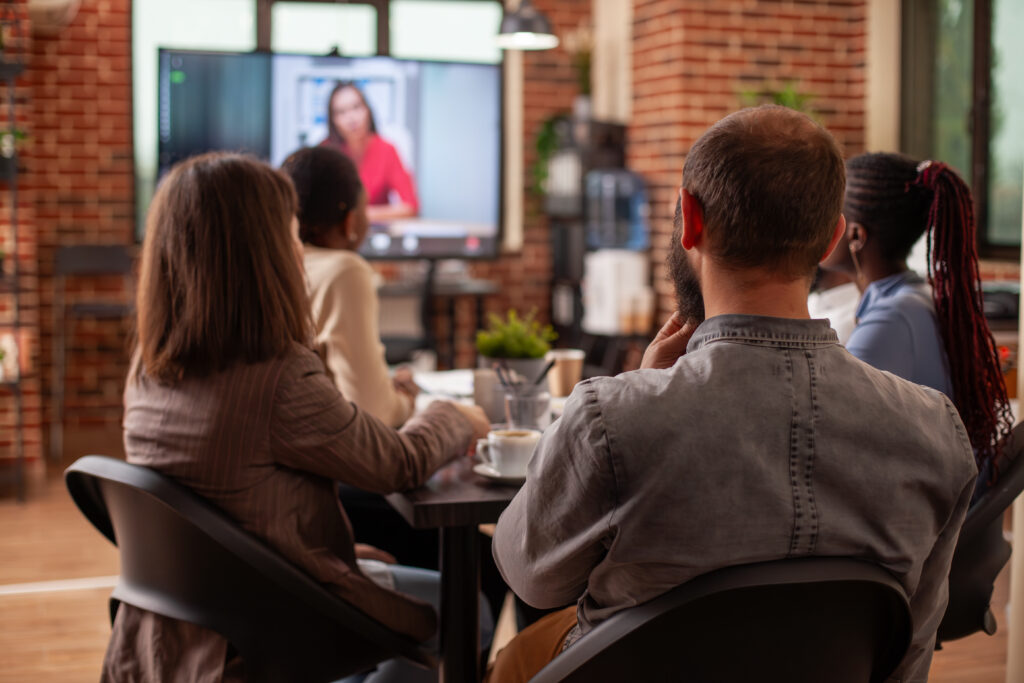
Organize a hybrid event (in-person + online) in a hybrid event venue in Madrid usually fails for the same reason: not because of a lack of desire, but because of a lack of "technical prevention."
This guide is designed to help you solve the problem with a simple approach: "I'll wrap it up with a checklist and a 10-minute test."
1) What always goes wrong at hybrid events (and how to prevent it)
Fault #1: "My laptop isn't displaying an image."
Common cause: Incorrect adapter (USB-C/HDMI/DisplayPort), "charging only" cable, or duplicate/extended display configuration.
Prevention: Set an input standard (e.g., HDMI) and have courtesy adapters available (USB-C→HDMI, USB-C→DisplayPort, HDMI→USB-C, etc.).
Flaw #2: "The sound quality is terrible / there's an echo / they can't hear me."
Common cause: Laptop microphone + room speakers + remote microphone = guaranteed echo.
Prevention: Decide on a simple rule:
- The audio from the event is broadcast through a room system (with a dedicated microphone).
- The audio goes through videoconferencing equipment (built-in speaker/microphone).
- But don't just mix "laptop microphone" + "big speakers" without control.
Mistake #3: "The camera is visible, but the room is not."
Common cause: Camera positioned incorrectly (too close), poor lighting, or the room is "in shadow."
Prevention: Two adjustments that fix the problem 80% of the time:
- Camera at eye level and a little further away than it appears.
- Soft front lighting (or turn on light sources that "lift" faces).
Error #4: "Teams/Zoom/Meet does not detect the microphone/camera."
Common cause: System permissions (especially on Mac), or the device is being used by another app.
Prevention: During technical testing, open Settings → Privacy and confirm microphone/camera permissions for the application.
Failure #5: "WiFi is saturated / cuts out / has latency"
Common cause: Usage spikes or irregular signal.
Prevention: For a serious hybrid event, always request a wired connection option for the broadcasting equipment (even if you end up using WiFi).
2) Technical checklist (Mac/PC, adapters, audio)
Here is the "real" checklist: the one that avoids surprises.
A) Video (screen/projector/TV)
- Defined standard input (recommendation: HDMI).
- Cables: 2 HDMI (one "main" and one "backup").
- Adapters (essential):
- USB-C → HDMI (modern Mac/PC)
- HDMI → USB-C (depending on equipment)
- DisplayPort → HDMI (many corporate PCs)
- Ready to go: Duplicate your screen (don't "extend" it, unless you need to).
- Offline presentation (downloaded PDF) in case the cloud fails.
B) Videoconferencing (the critical part)
- Confirmed platform: Teams / Zoom / Meet (and updated version).
- Link tested (not the "final" one if it does not yet exist; a test link is fine).
- Has permissions: Host/cohost if necessary.
- Backup device: A cell phone with data to join the meeting if the laptop dies.
C) Audio (what most affects the experience)
- Decide on the layout:
- Diagram 1 (simple and robust): A single "video conferencing device" manages the microphone and speaker.
- Scheme 2 (more professional): Room microphones + audio system, with volume control.
- If there is a speaker in the room:
- Lapel or handheld microphone (better than "portable microphone").
- If there are question and answer sessions:
- Microphone for the audience or "person carrying the microphone" (and discipline).
- Anti-echo rule: If audio enters one system, the other is muted.
D) Connectivity
- Proper WiFi and wired connection option for the broadcasting equipment.
- WiFi password handy (no last-minute "what was it again?").
E) Technical support
- Clear responsibility: "Who decides and who acts?" (One person is in charge).
- Support phone number/WhatsApp handy.
- 10 minutes of actual margin before the audience enters.
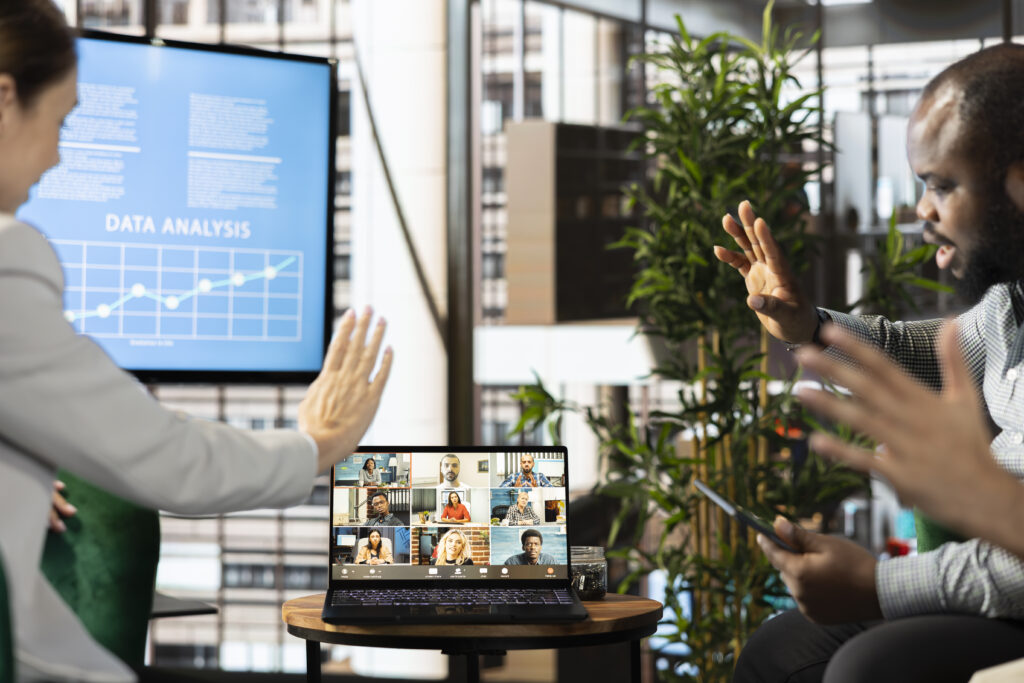
3) How to organize a 10-minute test (before the event)
This is what separates a "professional" hybrid event from a "brave" one.
The rule: The test is not "plug and play." The test is to simulate 2 minutes of a real event.
Test script (10 minutes timed)
Min 0–2 | Connection
- Connect laptop (Mac/PC) to screen.
- Open the platform (Teams/Zoom/Meet) and click on the link.
Min 2–4 | Image
- Share screen.
- Test: Advance the slide, play a short video (if there is one).
- Confirm: "Remote users can see the screen" (have someone remote confirm this).
Min 4–7 | Audio (the important stuff)
- Speak from the point where the speaker will speak.
- Ask for remote feedback: "Can you hear me clearly? Is there any echo? Are there any dropouts?"
- Adjust one thing at a time (volume, microphone, speaker). Don't "mess with everything."
Min 7–9 | Questions
- Simulate a question from the audience.
- See if the remote understands.
Min 9–10 | Closing
- Confirm Plan B (below).
- Save a contact: "If something goes wrong, I'll text X on WhatsApp."
Practical tip: ideally, the test should be done 24–48 hours beforehand, if possible for the speaker. If not, then on the same day, but set aside 15–20 minutes in your schedule (10 minutes is not enough in real life).
4) Plan B: recording, cable, and on-site support
A hybrid event without a Plan B is not hybrid: it's a gamble.
Plan B #1: Local recording
- If the connection becomes complicated, at least record the content (audio + video) and send it to the remote attendees later.
- Minimum solution: Recording from the laptop itself.
- Best solution: Recording from the room/camera system, if available.
Plan B #2: Cable connection
- If the WiFi fails, the cable will save the event.
- Ideal: The transmitting device (main laptop) is connected by cable. The rest are connected via WiFi.
Plan B #3: "no screen sharing mode"
- If screen sharing fails, you can:
- Send the PDF via chat to remote users.
- Or show the presentation in the room and have the remote participant follow along from their PDF.
Plan B #4: On-site technical support (when the event really matters)
If it is an event with management, clients, or branding, it is wise to have on-site support, someone who:
- Resolve adapters and signal.
- Control the audio to avoid echo.
- Manage remote inputs, silences, "we can't hear you," etc.
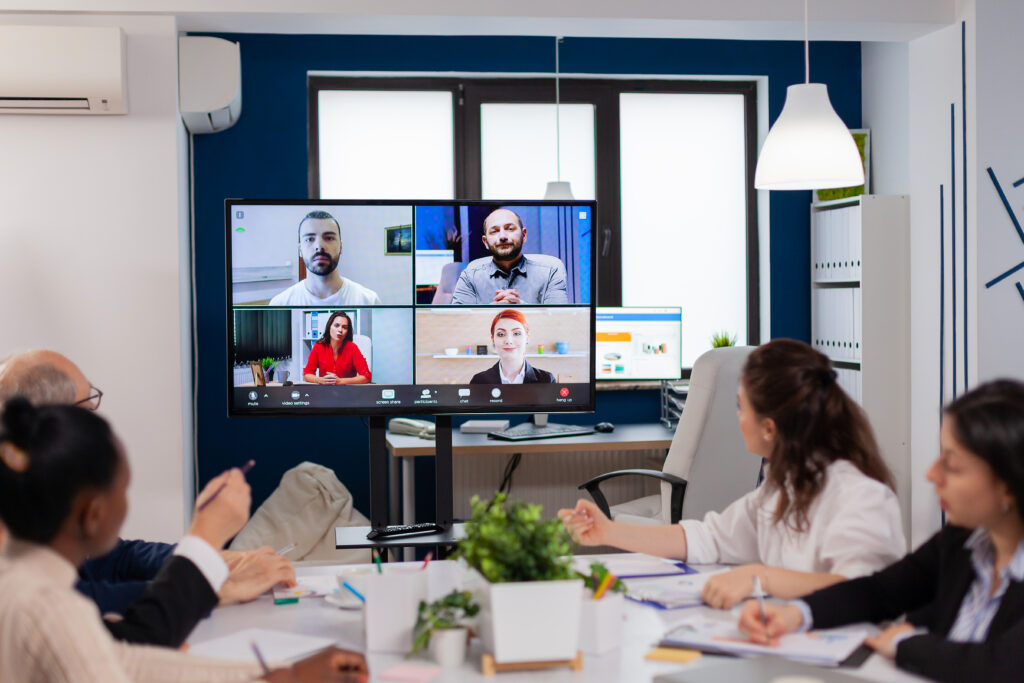
5) Frequently Asked Questions
Ensure your hybrid event goes smoothly by sending these questions to the venue where you will be holding it. Here are the answers from The Shed coworking:
Does it work with Mac and PC?
Yes, as long as you set the input (HDMI, for example) and have the usual adapters. The problem isn't "Mac vs. PC"; it's arriving without the right adapter.
Do you include adapters (USB-C, HDMI, etc.)?
We have a basic courtesy kit. If the event is important, ask us for the exact list via WhatsApp and we will prepare it in advance.
Is it possible to hold a videoconference for an event in Madrid without interruptions?
Yes, but it doesn't just depend on the platform. It depends on well-planned audio + technical testing + connectivity (ideally with a cable option).
Which platform do you use: Teams, Zoom, or Google Meet?
Whichever one you need. The key is to test it 10 minutes beforehand with the actual devices.
Is there a cable connection in addition to WiFi?
For serious hybrids, there should be a cable option for the main equipment. If this is critical for your event, please confirm when requesting availability. We do have structured cabling.
Can you record the session?
Normally yes (depending on the setup and permissions). If you need it, let us know from the beginning so we can prepare Plan B for recording.
Copy and paste this into WhatsApp, and they'll get you started without 20 emails:
Template message (WhatsApp):
Hello, I would like a room for a hybrid event in Madrid.
- Date:
- Schedule (start–end):
- Number of people present:
- Number of people online (approx.):
- Platform (Teams/Zoom/Meet):
- Is the speaker bringing a Mac or a PC?
- I need to share my screen (yes/no) and play a video (yes/no):
- I need a microphone for the speaker and/or questions (yes/no):
Do we want recording as a backup plan? (yes/no):
Can you confirm availability and can we do a 10-minute technical test?
 Contents